Keep your routes organized with Collections
You've planned a great route. Saved it.
A month later you can't find it because it's buried under ten others with no names.
Collections fix that. Here's how to use them.
What's a Collection?
A Collection is a folder for your routes. You can group them however makes sense to you: by location, by trip, by type of ride. A few examples:
- Local loops — your go-to routes near home
- Upcoming road trip — routes planned for a specific weekend
- Gravel routes — surface-specific rides you want to revisit
Creating a Collection
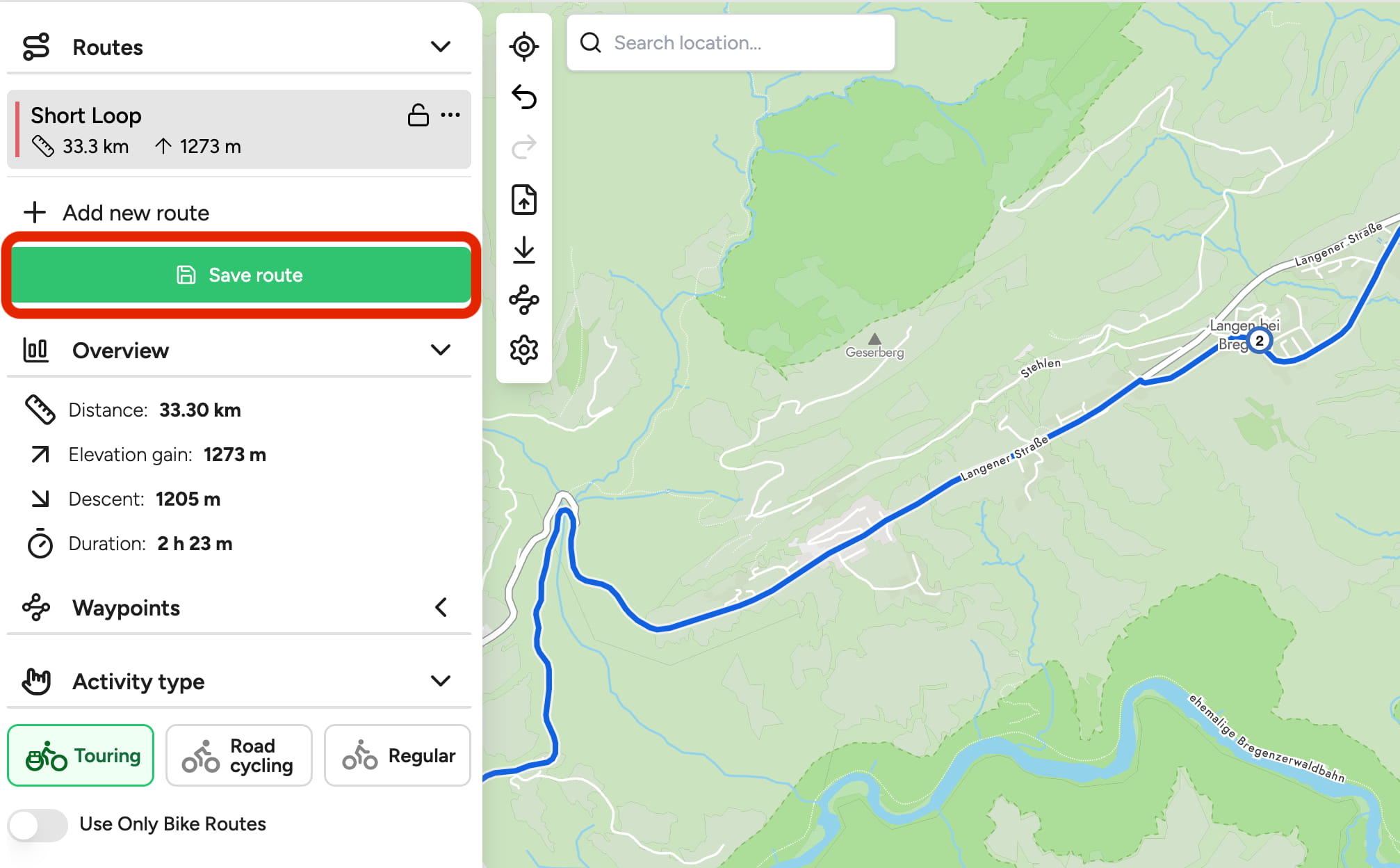 Creating a new collection in Traili
Collections are created when you save a route in the planner. Once you've got a route you want to keep, click the green Save route button in the left sidebar.
A popup appears — open the Collection dropdown and pick Create New Collection from the list.
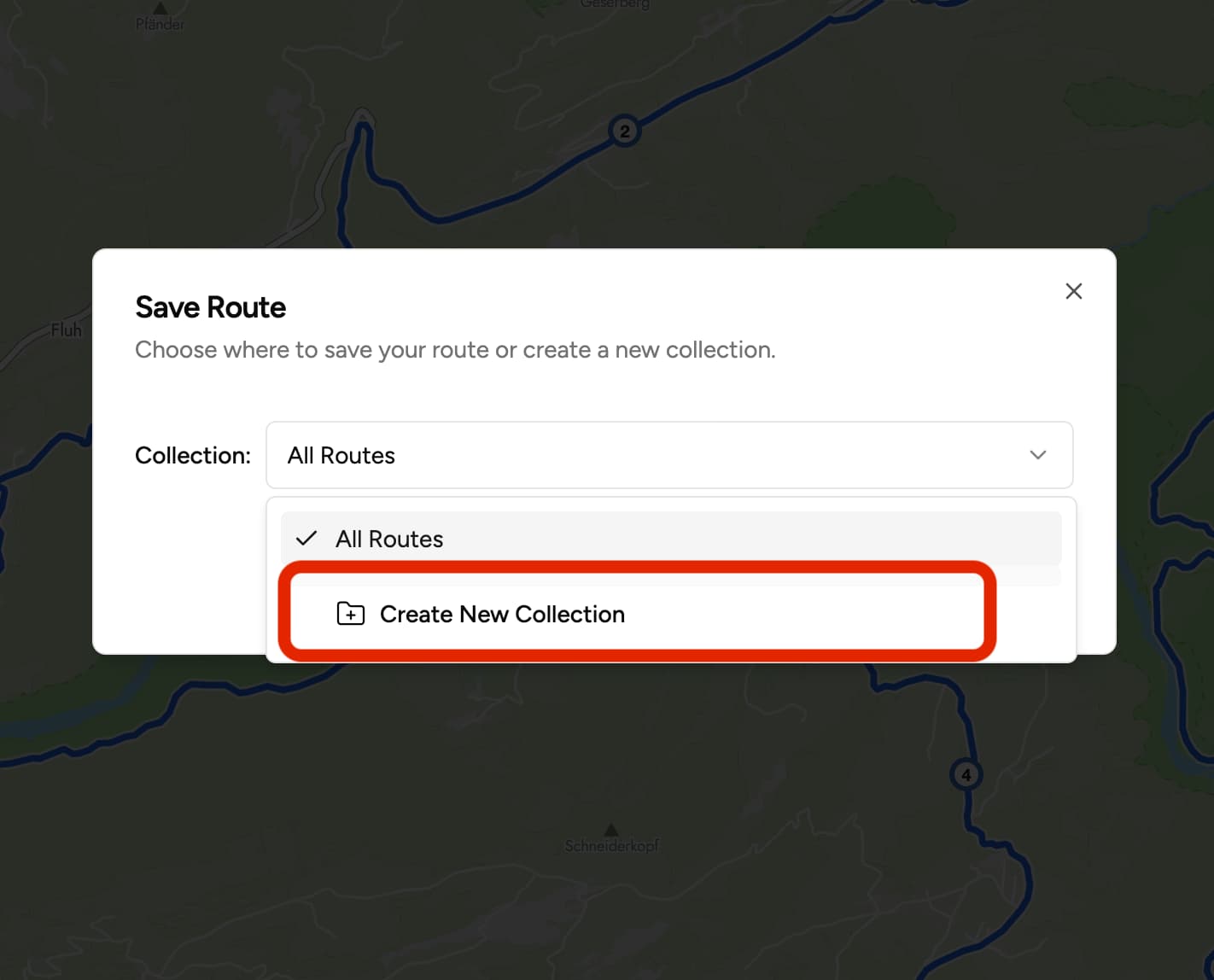 Creating a new collection in Traili - step 2
Browsing your collections
To see your collections, open your profile — the button is in the top right corner.
From there you can:
- Browse all your collections and the routes inside each one
- Edit the description — handy if you want to note things like surface type or total elevation
- Switch between public and private — keep a collection just for yourself, or open it up if you want to share the whole thing
- Move routes between collections — useful when your plans change or a route fits better somewhere else
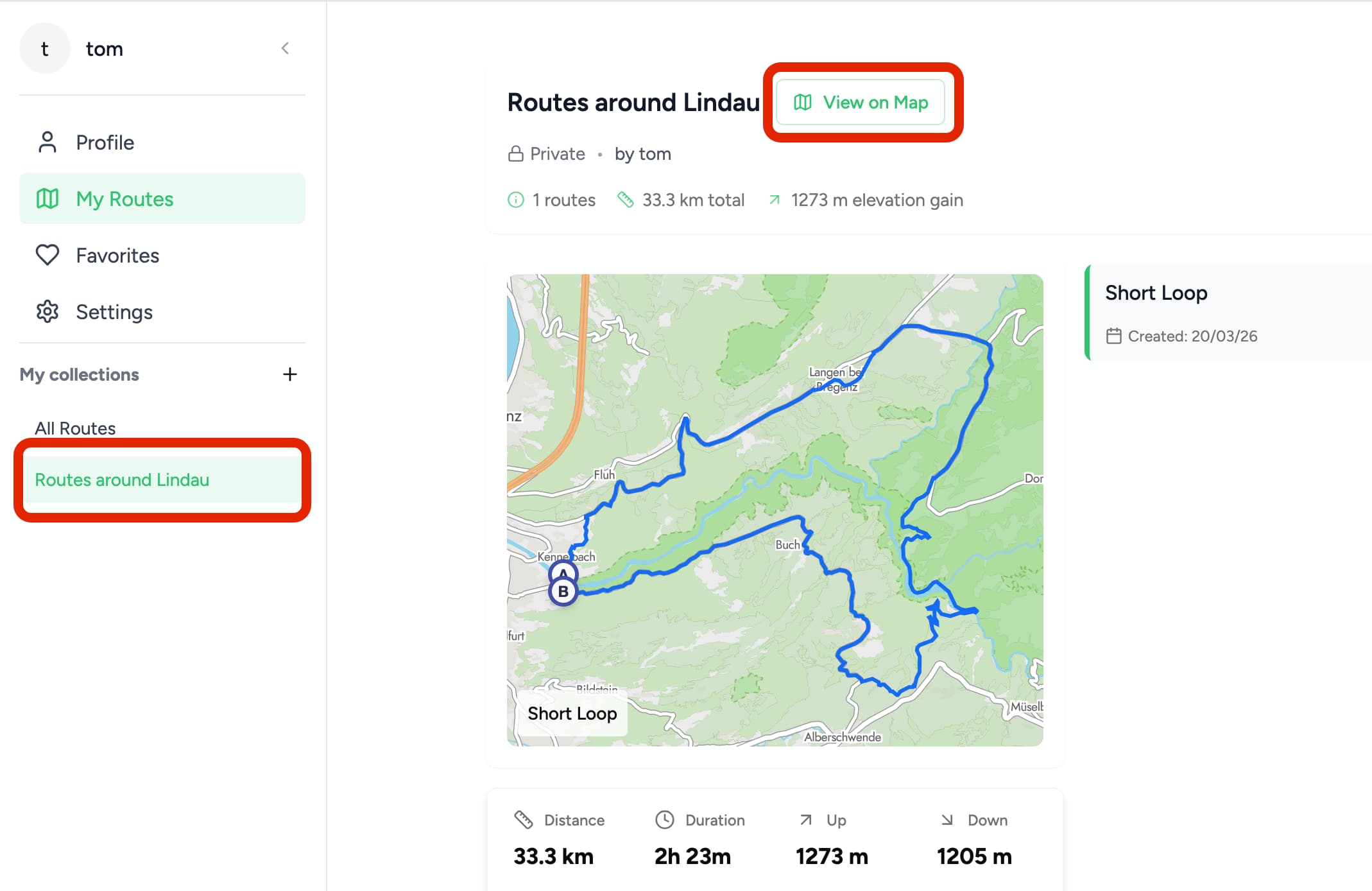 Browsing route collections
Viewing All Routes on a Map
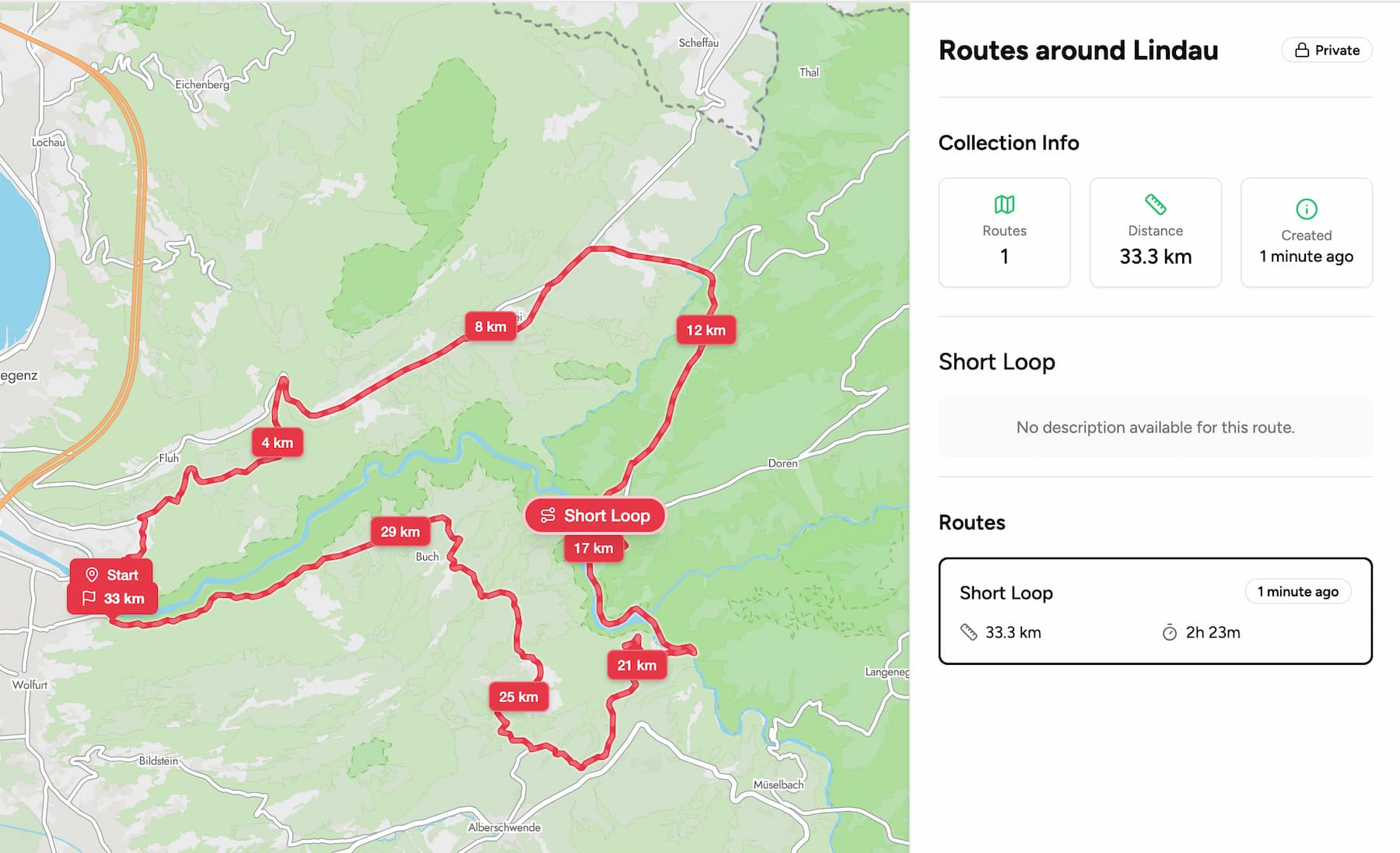 Collection map view
Each collection has a full map view that shows all its routes at once. Useful when you're planning a multi-day trip and want to see how segments connect. Or when you're heading somewhere and want to check what you've already saved there.
Sharing a Collection
Collections can be shared with a link. If you're riding with others, this is the easiest way to get everyone on the same routes without sending individual links.
Questions or ideas? Drop me a line at tom@trailimap.com.